How to Read Your Deriv Statement and Trade History
Tradely keeps two records of your activity: Trade History for each trade, and your Statement for every transaction and your balance. They answer different questions.
Last updated:
Trade History: one row per trade
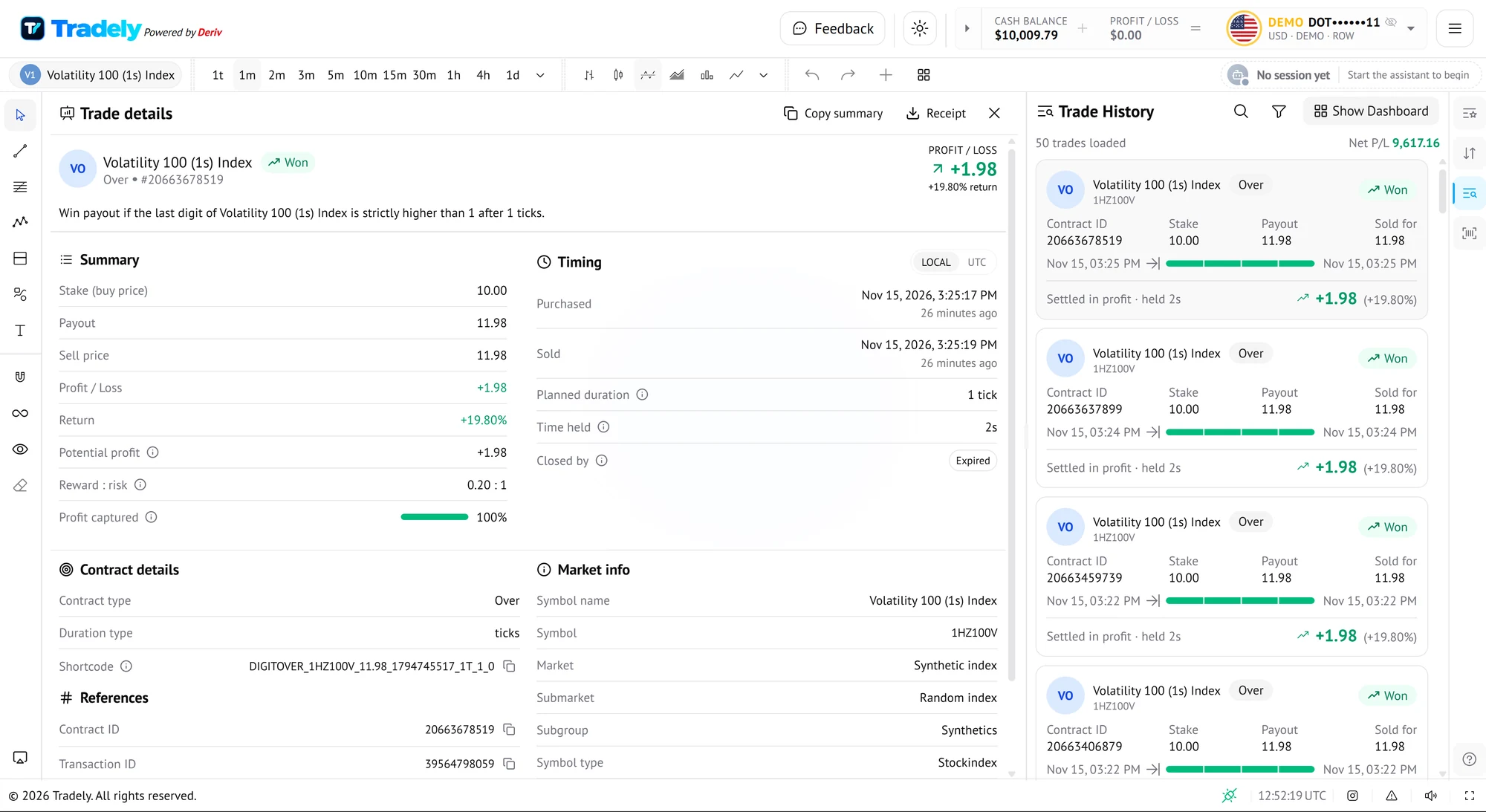
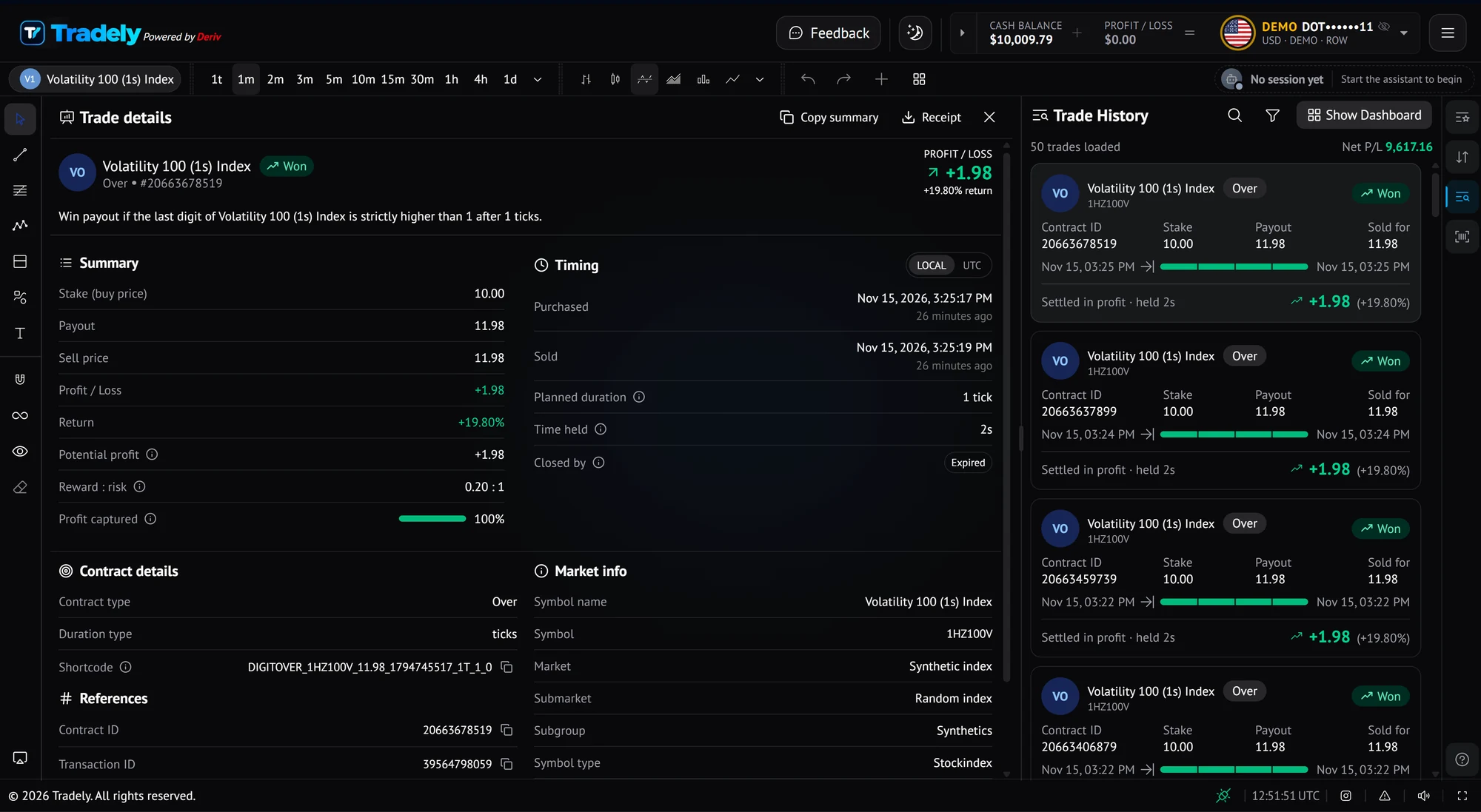
- Each trade shows won or lost, stake, payout, what it sold for, how long it was held and the profit or loss.
- A net profit and loss total covers the trades you have loaded.
- Open any trade for its summary, timing, contract and market details.
- Use Copy summary, or open Receipt to download the trade as a PDF or a CSV file.
Statement: one row per transaction
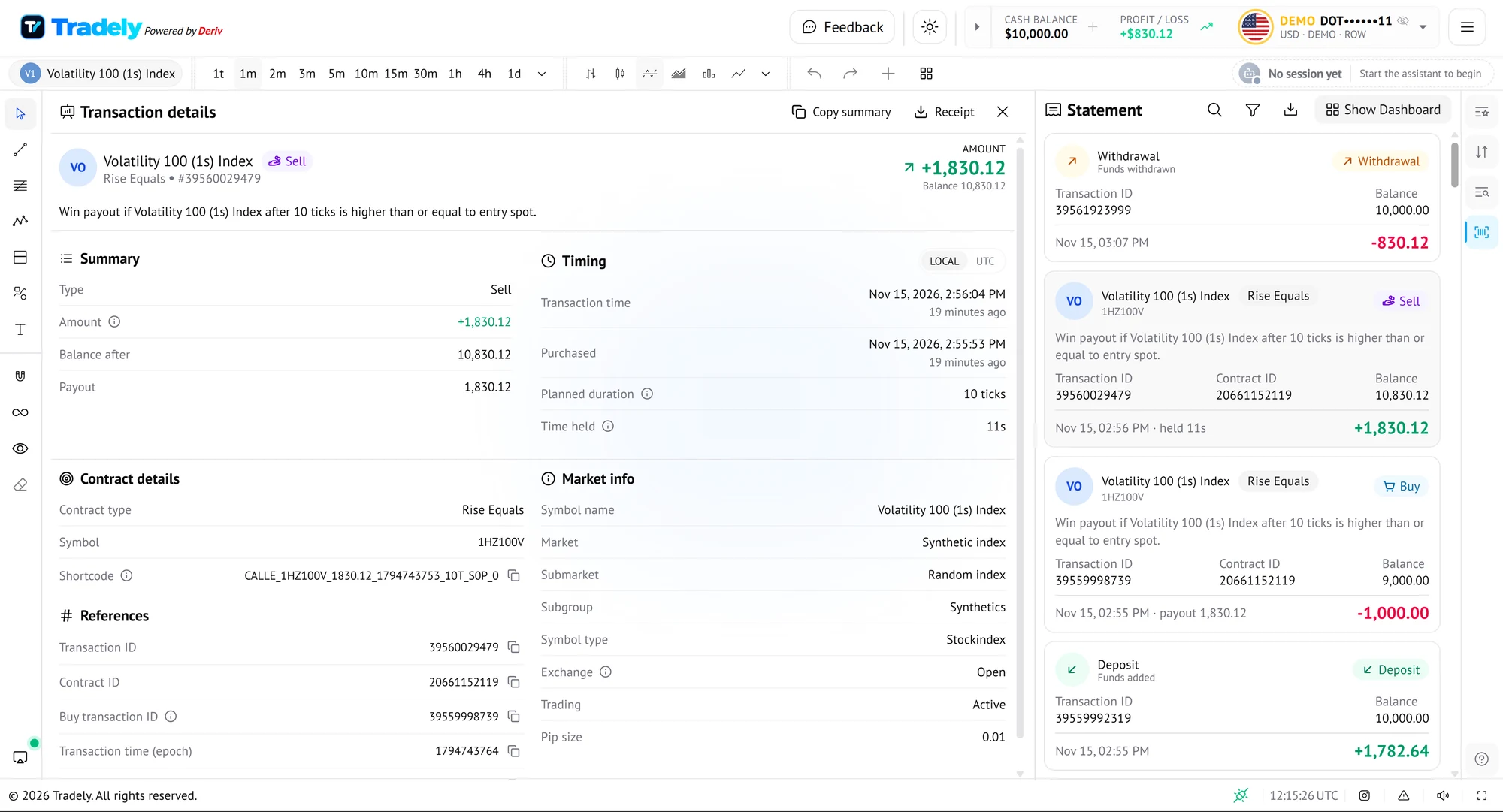
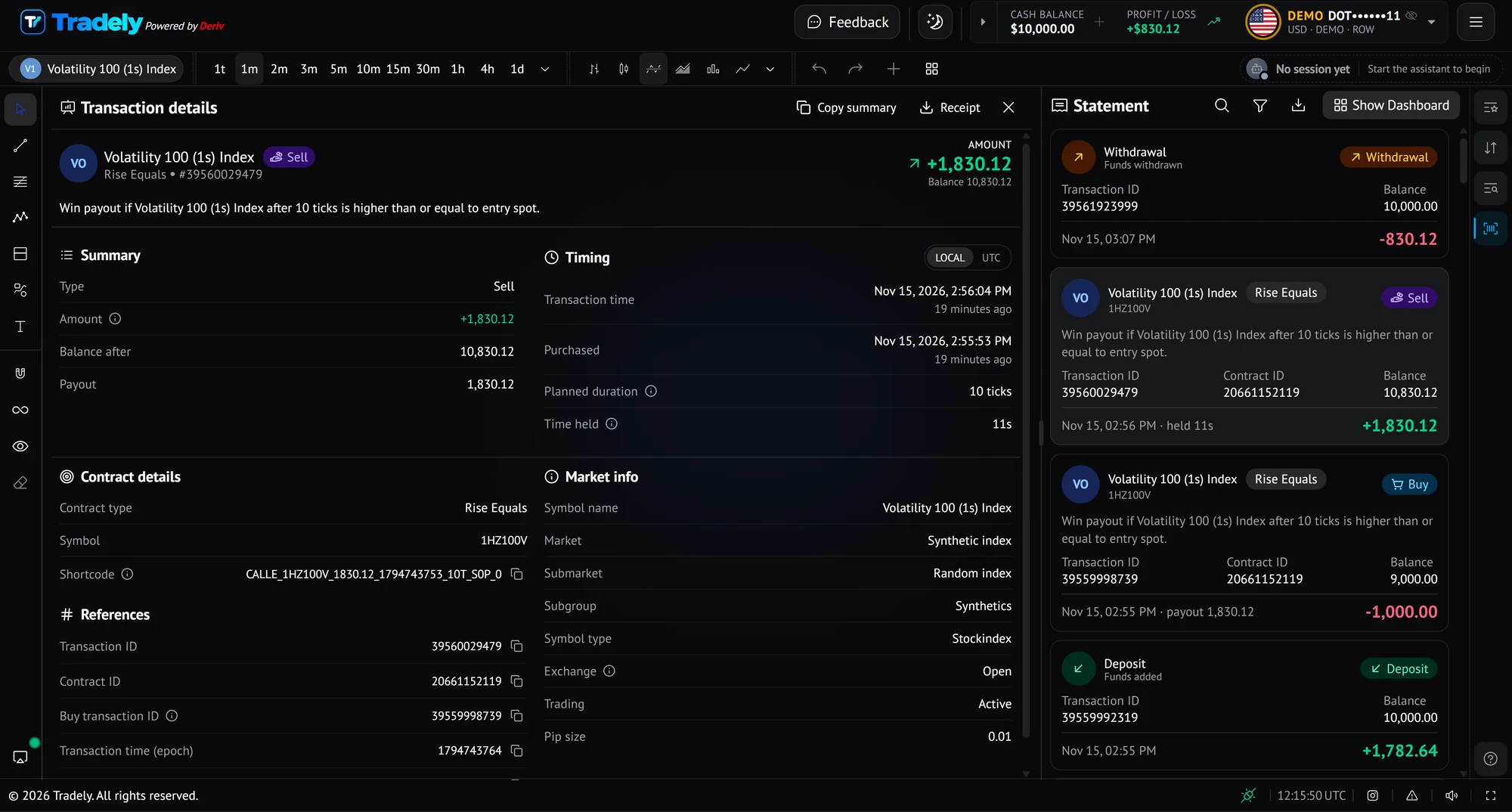
Deriv describes a statement as a report summarising trading activity over a set period. In the app, one contract creates two transactions: a Buy when the stake leaves your balance, and a Sell when the payout comes back.
| Transaction | Type | Amount | Balance after |
|---|---|---|---|
| Over contract, Buy | Buy | −10.00 | 7,197.99 |
| Same contract, Sell | Sell | +11.98 | 7,209.97 |
One contract, two statement transactions (example from the app). The difference, 1.98, is the profit on that Over contract.
Opening a transaction shows its summary (type, amount, balance after, payout), timing (when it was bought and sold, planned duration and time held), contract details such as the contract type and symbol, market information and reference IDs. You can search and filter the list. In the transaction details, Copy summary copies the details as text, and Receipt downloads a PDF or CSV.
Trade details explained
Open any trade in Trade History to see a full breakdown. Here is what each part tells you.
| Field | What it means |
|---|---|
| Stake (buy price), Payout, Sell price | What you paid, what the contract would pay if it won, and what it sold for |
| Profit / Loss and Return | Your result, and that result as a percentage of the stake |
| Potential profit | Payout minus stake: the most this contract could have earned |
| Reward : risk | Potential profit for every 1 unit of stake put at risk |
| Profit captured | The share of the potential profit the trade actually earned. Losses count as 0% |
| Purchased, Sold, Time held | When the trade opened and closed, and how long it was held |
| Planned duration | Read from the contract shortcode. Not available for Multipliers and Accumulators |
| Contract type, Shortcode | The contract, and a compact identifier for its full definition |
| Market info | Symbol, market, submarket, symbol type, pip size, and whether trading is active or suspended. The exchange status is its current status, not the status when you traded |
| References | Contract ID, transaction ID and the app that placed the trade |
Fields in Trade details.
A Local / UTC switch changes how times are shown. A Why this result note explains a loss in plain words, for example that the contract closed without meeting its win condition and the stake was lost.
| Closed by | Meaning |
|---|---|
| Expired | The contract ran to its planned expiry |
| Ended early | Closed before its planned expiry, for example because a barrier was reached |
| Sold early | Sold before the planned expiry at the market price |
| Cancelled | Deal cancellation was used and the stake was refunded |
| Barrier hit | For Accumulators: the price moved outside the barriers and nothing was returned |
| Stop out | For Multipliers: nothing was returned, which is typical of a stop out |
| Sold / limit order | For Multipliers and Accumulators: closed manually, or by a take profit or stop loss |
What "Closed by" means.
In the statement's transaction details, the Amount is negative when money leaves your account and positive when it is credited. A Sell transaction also shows a Buy transaction ID, which points to the transaction that opened the contract.
Statement analytics
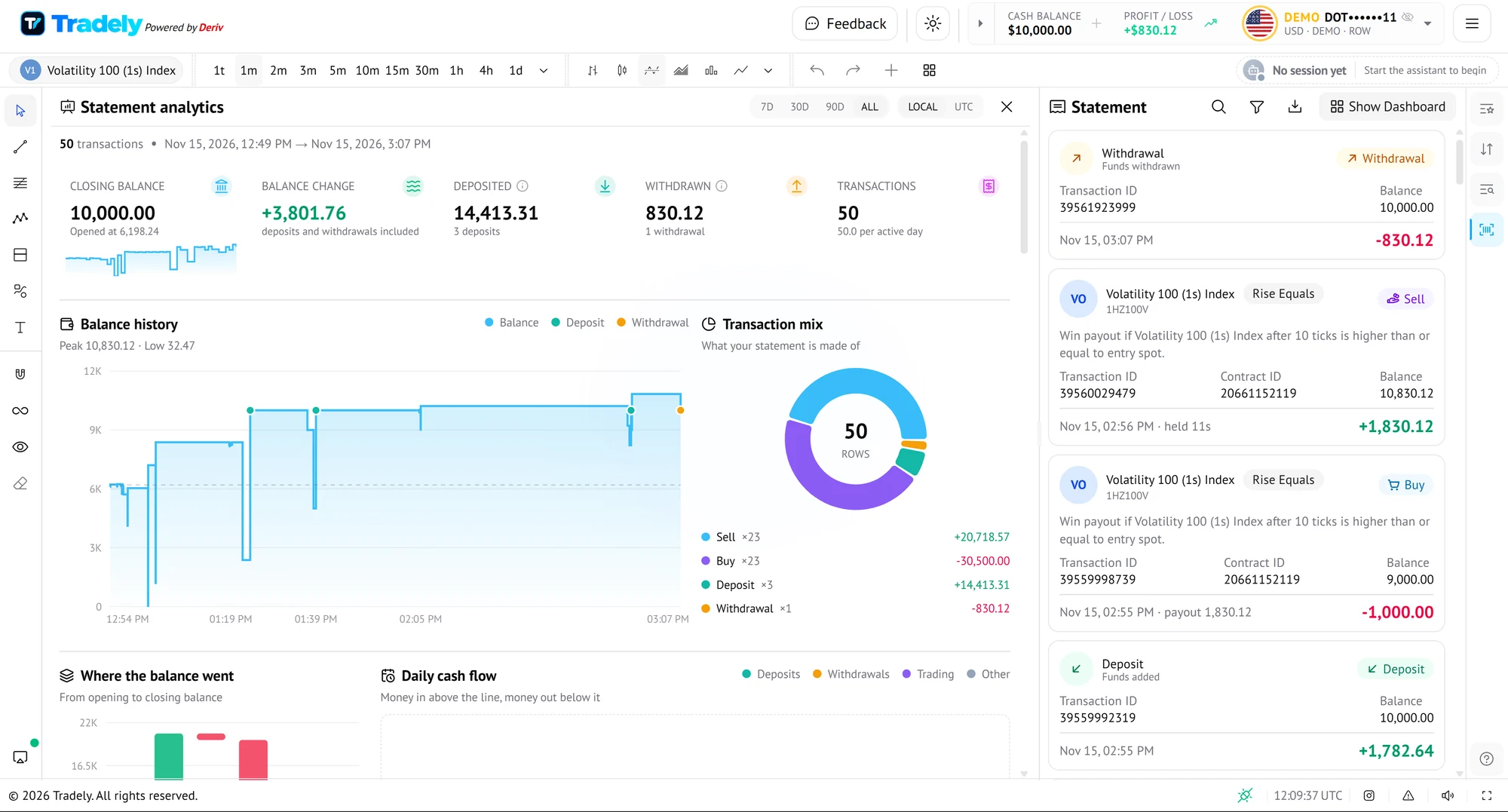
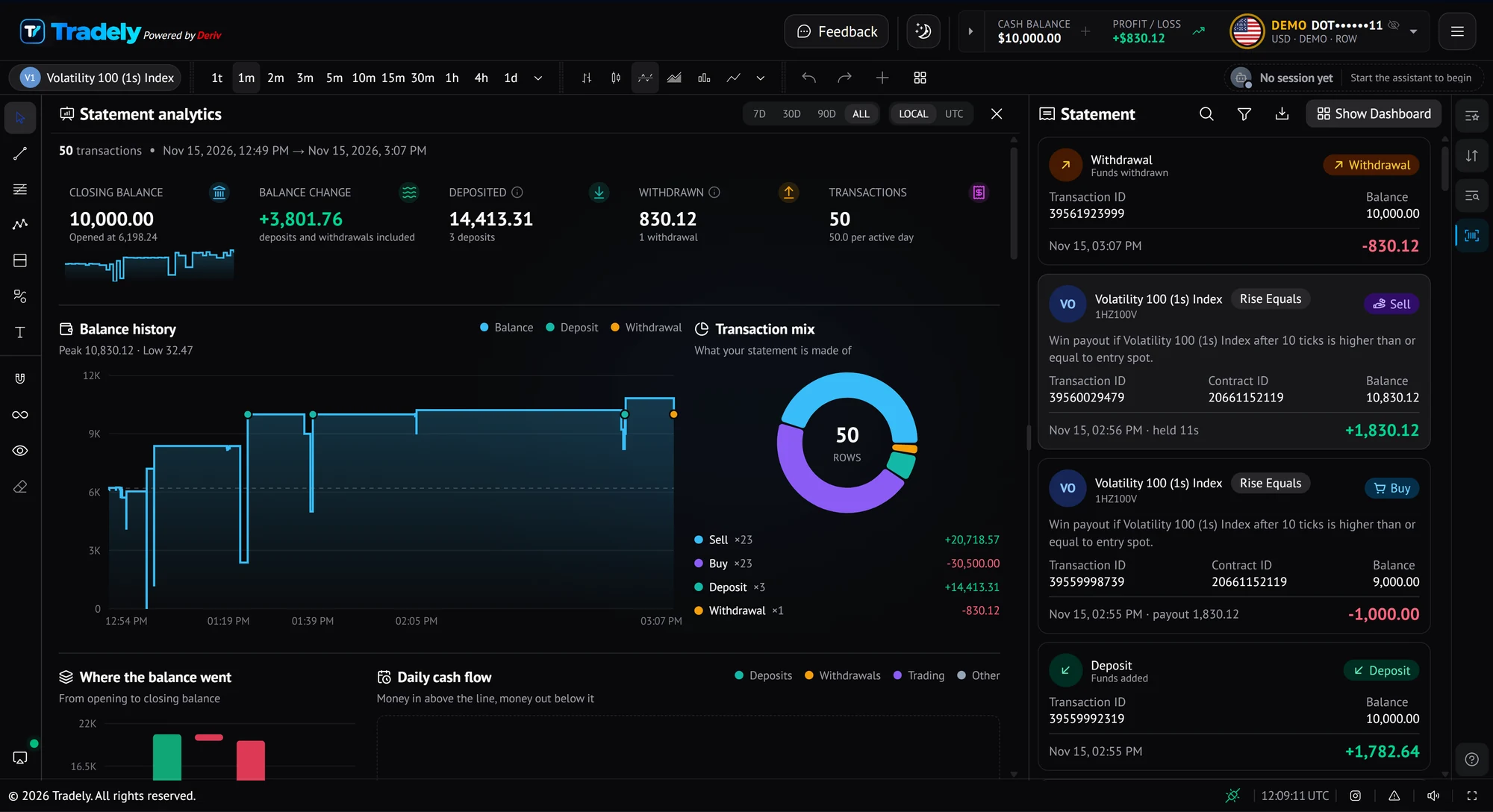
- Closing balance, balance change, deposits, withdrawals and transaction count for the period.
- A balance history chart with your peak and low.
- A transaction mix chart splitting Sell and Buy transactions, with totals.
- "Where the balance went" and "Daily cash flow" views.
- Switch the period between 7D, 30D, 90D and ALL, and between local time and UTC.
Trade History or Statement?
| Question | Use |
|---|---|
| Did that trade win, and what did it pay? | Trade History |
| How did my balance change over time? | Statement analytics |
| I need a receipt or the transaction ID | Statement or trade details |
| How is my overall performance? | Trade analytics |
Choosing between Trade History and Statement.
Practise on a Deriv demo account before you use real money.
Get StartedFrequently asked questions
- Why does one trade appear twice in my statement?
- A contract creates a Buy transaction when the stake is taken and a Sell transaction when the payout is returned.
- Can I download a receipt?
- Yes. In trade details or transaction details, open Receipt and choose PDF or CSV. You can also copy a text summary.
- What does Closed by mean?
- It shows how a contract ended, such as Expired, Ended early, Sold early or Cancelled.
- What periods does Statement analytics cover?
- 7 days, 30 days, 90 days or all time.
Keep reading
- Trade analytics explainedTrade analytics summarises your settled trades in one view. This guide explains each metric and uses a real example where a 54% win rate still lost money.
- Run your first assistantEverything you need to start an assistant sits in one panel: market, contract, stake, risk limits and strategy. This walkthrough follows the panel from top to bottom.
- Trading glossaryShort definitions of stake, payout, barrier, tick, drawdown, bankroll and more.
Sources
Risk warning: Trading binary options involves a high level of risk and you could lose your entire stake. Only trade with money you can afford to lose. This page is educational and is not financial advice.